
Why Was My Shift Flagged for Review?
When something about your shift needs a supervisor's attention, FabWise flags it for review instead of auto-approving it. This keeps your pay accurate.
Why it matters
Most shifts are straightforward — you arrive on time, work your hours, take your break, and leave. These shifts are auto-approved and ready for payroll. But sometimes something unusual happens: you clock in or out outside the rounding window, you take personal time, you work an unscheduled shift. When that happens, your supervisor needs to see the shift before it's processed for pay.
This isn't a punishment — it's a quality check. Your supervisor reviews the shift, confirms the times are correct, and approves it. Then it goes to payroll.
How it works
After your shift is completed, FabWise automatically runs a series of checks. Each check returns one of two results:
- OK — no action needed
- Review — your supervisor needs to look at this
If ANY check returns "Review," the entire shift is flagged. Your supervisor sees exactly which check triggered the flag and why. Your own shift record stays simple — see below.
What triggers a flag
| Reason | What happened | Example |
|---|---|---|
| Late arrival | You started your shift outside the rounding window of your scheduled start | Scheduled 8:00, started 8:10 |
| Early departure | You left outside the rounding window of your scheduled end | Scheduled until 4:00, left at 3:50 |
| Personal time taken | You took personal time during your shift | 30-minute appointment mid-shift |
| Unscheduled shift | You worked a shift that wasn't on the schedule | Came in on your day off |
| Missed shift | You were scheduled but didn't show up | No shift-start recorded |
| Overtime needs approval | You worked enough past your scheduled hours to need a supervisor's sign-off | Scheduled 8h, worked 9.5h |
| Meal break not taken | A meal break defined on your schedule wasn't recorded | Worked the shift without the scheduled meal break |
| Abandoned break | You started a break but never ended it | Started lunch, forgot to clock back in |
What doesn't trigger a flag
Minor time differences within the rounding window are automatically handled. If your shift starts at 8:00 and you start their shift at 8:05 with 15-minute rounding, that's "on time" — no flag, no question.
Where to find it
As a worker
- Kiosk: You won't see the flag at shift-end. Your shift completes normally.
- Workstation > My Shifts: Your shift detail shows only Type, Date, Scheduled Time, Status, Actual Time, and Total Hours — Status is always Scheduled, Completed, or Missed. There's no "Pending Review" badge and no review-reason text here; that level of detail is for your supervisor.
As a supervisor
- Admin > Timecards: a flagged shift shows an amber pill in the grid naming what it needs.
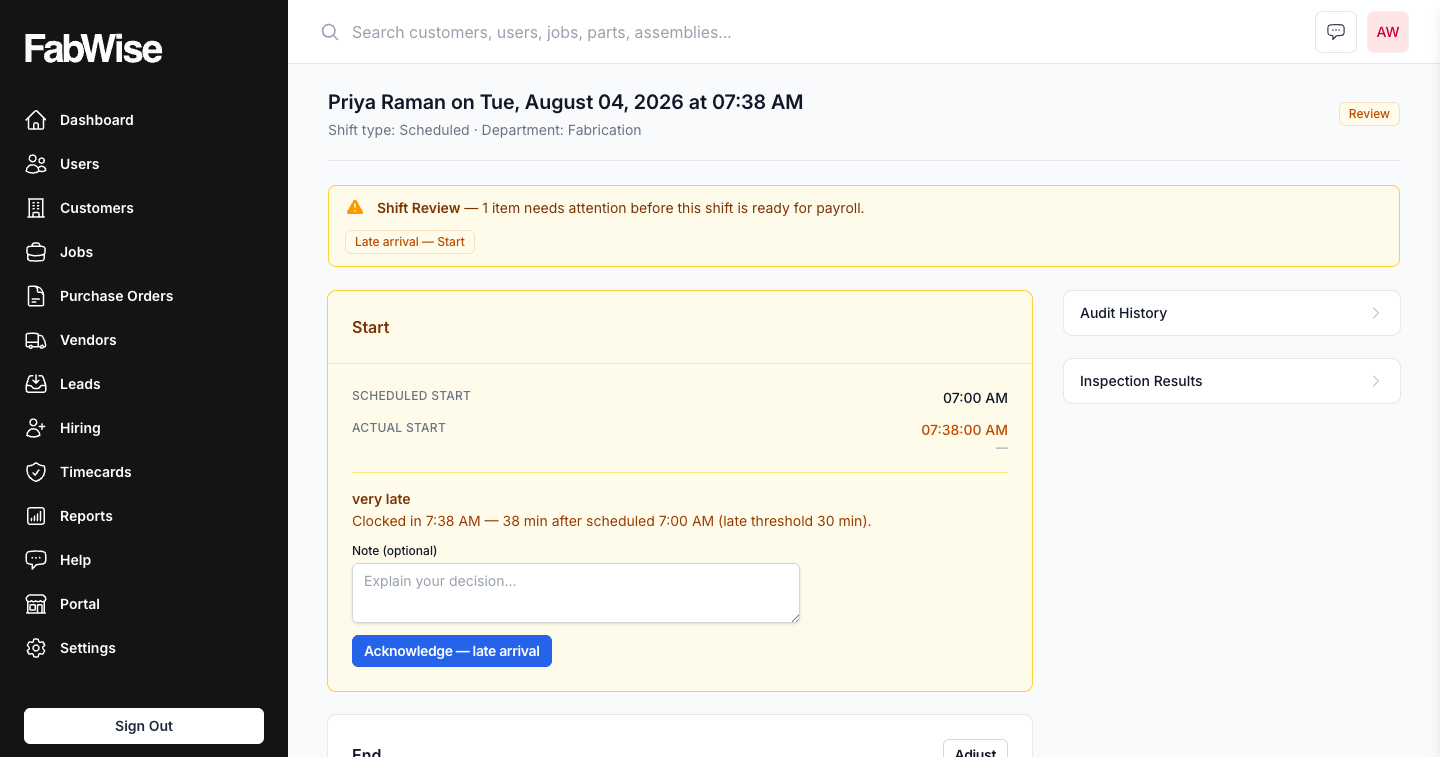
- Admin > Shift Detail (via View Shift): a Shift Review strip names every open item, and each one is resolved on the section card it concerns — with the scheduled time, the actual time, and an Acknowledge button, or a correction control if a time needs to be supplied or fixed.
What to do
If you're a worker
Nothing. Your shift was recorded accurately. A flag just means your supervisor will review it before payroll — you won't see it on your shift record, and that's expected. If you know why a shift might get a second look (you were late, you took personal time), that's normal.
If you're a supervisor
- Go to Admin > Timecards, select the week, and look for a row's amber pill
- Expand the row and click View Shift
- Open the section the Shift Review strip points to — it tells you exactly what triggered the flag
- Check the scheduled vs. actual times shown there — are they correct?
- Click Acknowledge to confirm the times and send to payroll
- Or use the section's correction control if you need to adjust the times
Common questions
Q: Will a flagged shift affect my pay?
A: Not by itself. The flag just means your supervisor reviews it before payroll. Once approved, it's processed normally. The times recorded are your actual times.
Q: I was only a few minutes late — why was it flagged?
A: Only lateness that rounds back to your scheduled start is auto-approved (with 15-minute rounding, that's about 7 minutes either side). Past that, the rounded time no longer matches your schedule, so it's flagged for your supervisor to see — however small the difference.
Q: Can I see what checks were run on my shift?
A: No — review status and reasons are supervisor-only. The full inspection detail is visible to supervisors in the Admin panel; your Workstation shift record only ever shows Scheduled, Completed, or Missed.
Q: My shift was flagged but everything was normal — why?
A: Check the review reason. Common surprises: an unscheduled shift (you weren't on the schedule that day), or personal time was recorded that you may not remember taking.
Q: I already acknowledged this shift — why is it asking for a fresh look?
A: Supervisors only. FabWise re-checks every open shift against its recorded times, not just once. If a correction changes the times after a shift was acknowledged, or a review reason gets more accurate, the shift can come back for another look — the recorded times never changed on their own, just what they mean. Review it the same way as any other flag: check the times, and acknowledge again.
Related
- [How Time Rounding Works](time-rounding.md)
- [Personal Time](../kiosk/personal-time.md)
- [Reviewing & Approving Shifts (Supervisors)](../admin/reviewing-and-approving-shifts.md)
Last updated: 2026-08-07