
Shift Approval
When a shift is flagged for review, the supervisor checks the details and acknowledges it before it goes to payroll.
Why it matters
Most shifts are clean — the worker started on time, worked their hours, and left on schedule. No action needed. But some shifts have something unusual: a very late arrival, personal time, an unscheduled shift, a missed shift, or overtime. These shifts need a human decision before they're processed for pay.
Reviewing shifts is quick. FabWise shows you exactly what triggered the flag and gives you the data to decide in seconds.
How it works
Every completed shift runs through automated checks. If any check returns "review," the shift lands in your review queue. You see:
- Why it was flagged — the specific reasons, in plain language
- What happened — scheduled vs actual times, breaks taken, net hours
- Your options — acknowledge the exception, or correct the times
A missed shift works a little differently: recording why it was missed (excused, unexcused, or no-call/no-show) closes its review at the same time — there's no separate acknowledge step for it.
Once all exceptions are acknowledged or resolved, the shift is ready to include in payroll. Sign off on the worker's week when the full period is clean.
Where to find it
- Page: Admin > Timecards > select a week
- Filter: an amber pill on a row means something needs attention; a quiet checkmark means clean
- Path to detail: expand the row and click View Shift to open the full shift detail
- Who can review: Account admins and supervisors
What you'll see
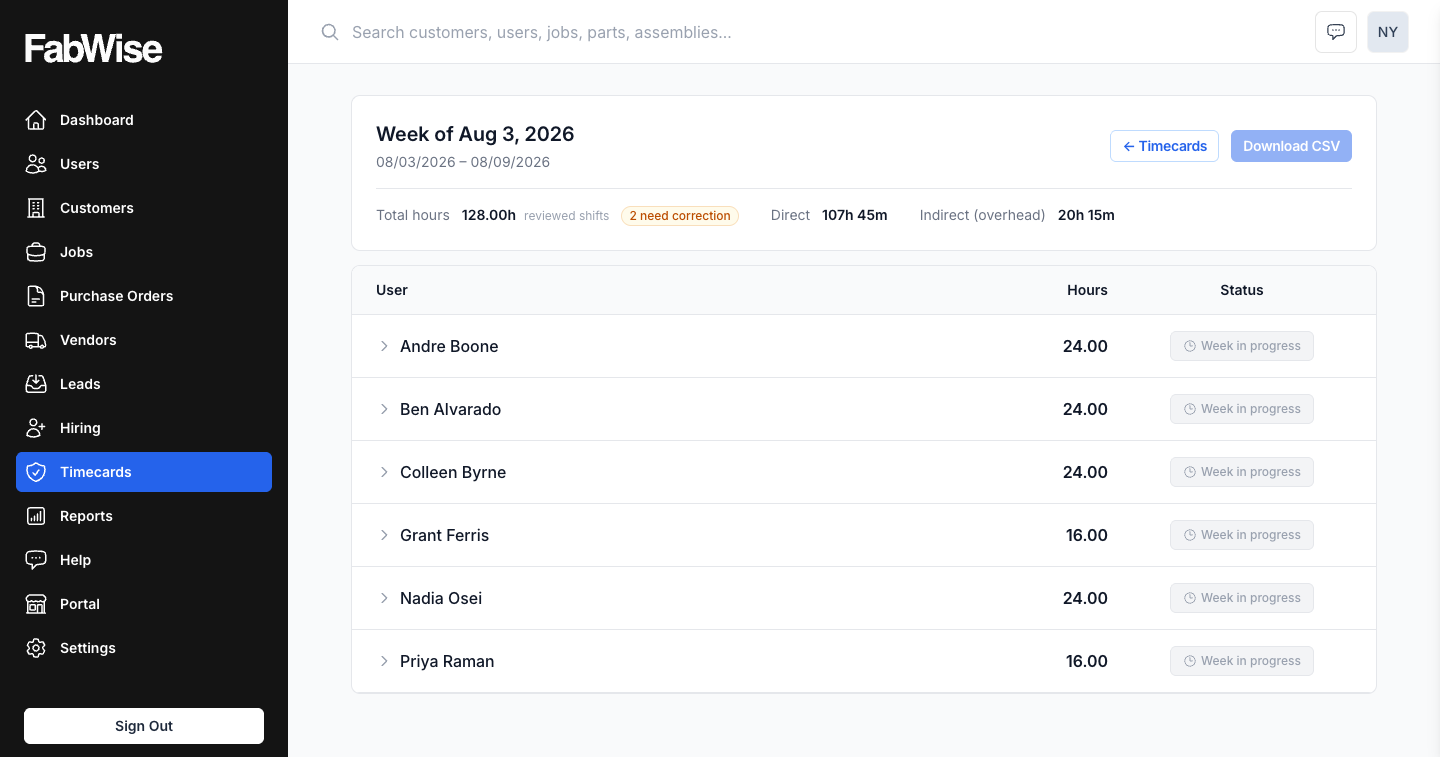
Timecards grid
A shift needing attention shows an amber pill naming exactly what it needs — "Needs acknowledgment," "Meal needs confirmation," "Needs end time," or "Missed — needs classification." Expand the row for a one-line summary of what triggered it, then click View Shift.
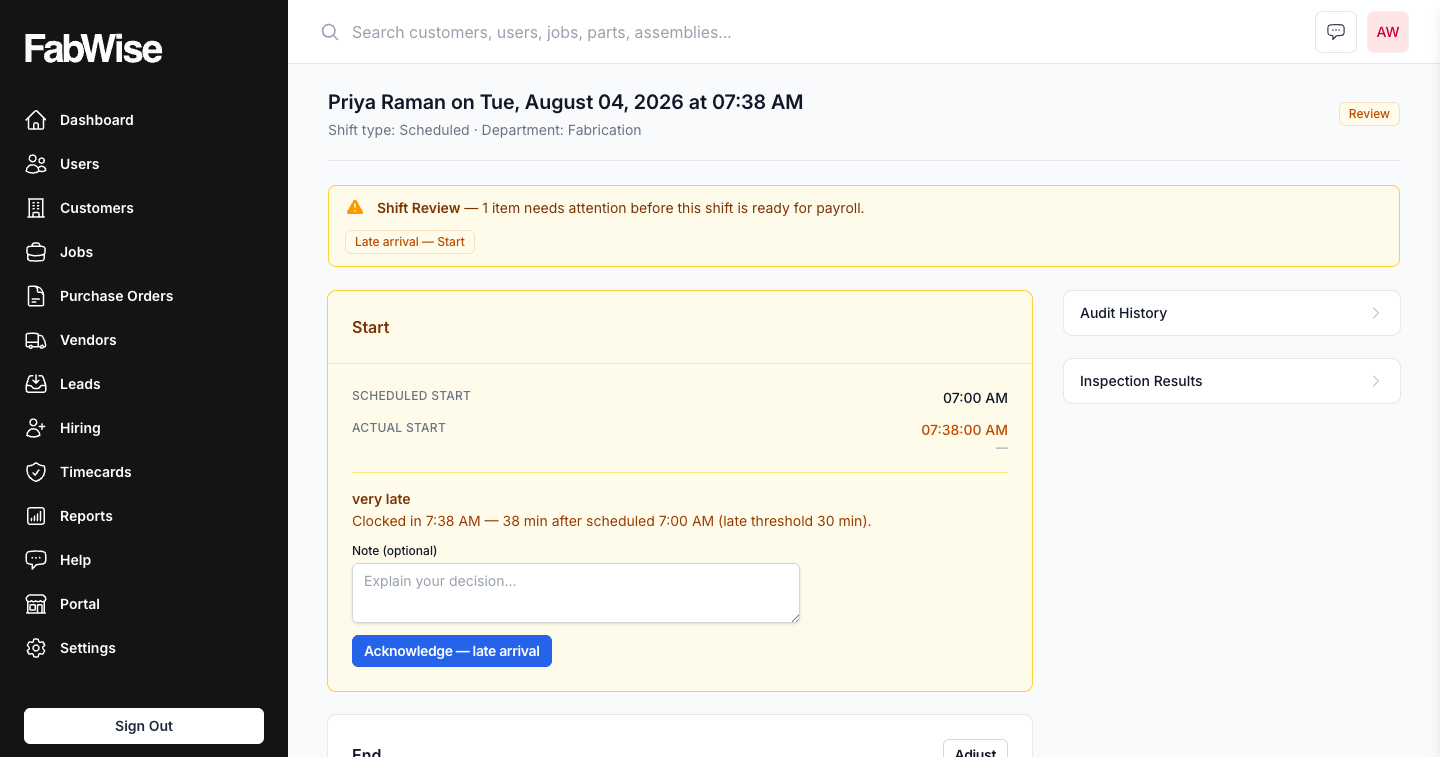
Shift detail
At the top, a Shift Review strip names how many items need attention and links to each one. The actual resolution happens further down, in whichever body section the item concerns:
- Start / End — a late arrival, an early departure, or a missing clock-out shows on the relevant card, with the scheduled time, the actual time, and the difference right there.
- Breaks — an unconfirmed meal shows two choices: the worker took it, or worked through it.
- Personal Time — an abandoned personal break shows here.
- Tasks Worked — unaccounted-for time shows here.
- Attendance — a missed shift's classification (Excused, Unexcused, No-call-no-show) is recorded here.
Times that differ from the schedule appear in amber so your eye goes straight to the difference.
Acknowledge button — each section with an open item carries its own button to confirm the times are right as-is.
Inspection Results (sidebar)
For more detail, expand the Inspection Results panel. This shows every automated check that ran:
- Green items: OK — no action needed
- Amber items: Review — the reason this shift was flagged
Most supervisors never need to open this panel. The Shift Review strip and the highlighted sections tell you everything.
What to do
Quick acknowledgment (most shifts)
- Open the highlighted section — the Shift Review strip links straight to it
- Glance at the scheduled vs. actual times shown there — do they look right?
- Click Acknowledge
That's it. The shift is acknowledged with the actual times (rounded per your account's rounding interval) and ready for payroll.
Missed shifts
A missed shift doesn't have an Acknowledge button — there's no arrival to confirm. Instead, open the shift and record why it was missed:
- Choose a classification: Excused, Unexcused, or No-call-no-show
- Add a note for context (optional)
- Click Save
Saving closes the shift's review at the same time — recording the reason is what clears it. If the worker actually did work the shift, correct it to worked instead (see below); a corrected shift is no longer counted as an absence.
Override and correct
If the actual times need adjustment — for example, the worker forgot to end their shift and the auto-end recorded midnight instead of 4 PM:
- Click Correct times (or, for an auto-ended shift, Left at scheduled time or Enter end time)
- Adjust the start or end time
- Add a note explaining the change (optional but recommended)
Save
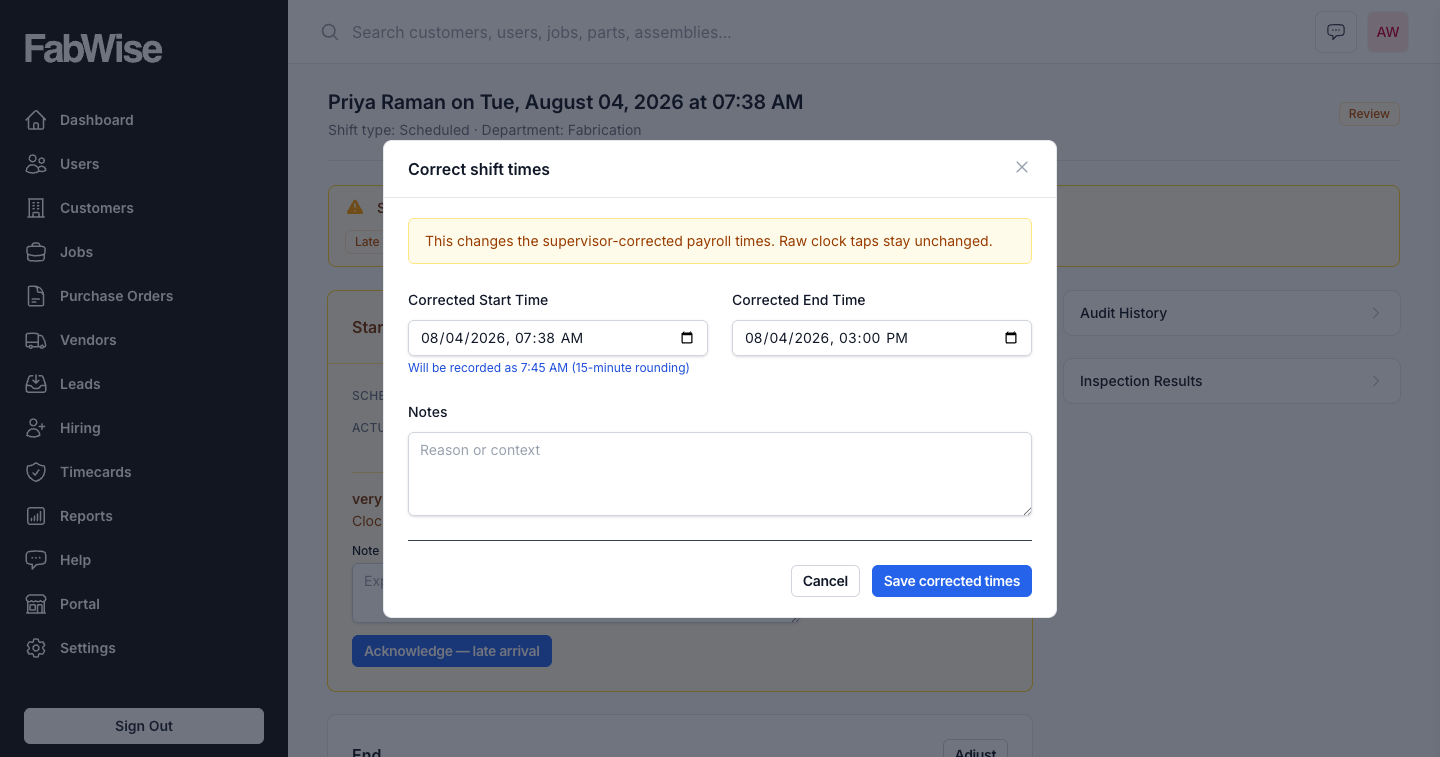
The corrected times become the final times used for pay.
When to investigate further
If you see something unexpected — a worker who's consistently late, personal time every day, unscheduled shifts on off days — check their performance view:
- Admin > Users > [worker name] — shows attendance patterns, shift history, and trends
The shift approval page is about this one shift. The performance view is about the pattern.
Common questions
Q: What happens if I don't acknowledge a flagged shift?
A: It stays in the review queue and won't be included in payroll. Workers are not paid for unresolved shifts. Review shifts promptly.
Q: Can I reject a shift instead of acknowledging it?
A: You can void a shift if it was entered in error (Admin > Shift Detail > Void This Shift). Voiding permanently excludes it from payroll. This is for mistakes, not disputes.
Q: Does acknowledging a shift change the worker's times?
A: No. Acknowledging confirms the times are correct. FabWise applies rounding to calculate final pay times. If you need to change the times, correct them instead.
Q: How quickly should I review flagged shifts?
A: Before your next pay run. Unresolved shifts won't appear in payroll. Most shops review daily or every few days.
Q: Can I acknowledge multiple shifts at once?
A: Not yet. Each shift is reviewed individually to ensure accuracy.
Related
- [Shift Detail](shift-detail.md)
- [Shift Review (worker perspective)](../time-tracking/shift-review.md)
- [Time Rounding](../time-tracking/time-rounding.md)
Last updated: 2026-07-30