
Managing Users
Add, deactivate, and manage your team. Every person who works in your shop is a user in FabWise.
Why it matters
Your user list drives everything — schedules, shifts, hours, and permissions. When someone joins the team, they need to be in the system before their first shift. When someone leaves, their data needs to be handled properly. FabWise makes both simple.
How it works
App access
A user's app access lives on their profile's Devices tab. It's independent of role — an admin can also clock in at the kiosk.
| Surface | How access works |
|---|---|
| Kiosk | Turn on the Kiosk access toggle and set a 4-digit PIN. This is what marks a worker as time-tracked. |
| Workstation | No toggle — access is a bound device. Generate a single-use QR code on the Devices tab and scan it on the worker's tablet. Requires Kiosk access, on the Professional plan. |
| FabWise (iOS) | Comes with the role — available to supervisors, managers, and admins. No toggle. |
See [Understanding app access](understanding-app-access-toggles.md) for the model in detail, and [Enroll a Worker for Workstation Access](enrolling-workers-for-workstation.md) for the Workstation setup steps.
Roles
When you add or edit a person, you assign one of four roles:
| Role | What they can do |
|---|---|
| User | Kiosk and workstation only — start/end shifts, take breaks, track tasks. Never enters the admin panel. |
| Supervisor | Shop-floor authority — confirm shifts, manual start/end, and view-only context (users, customers, jobs). |
| Manager | Day-to-day operations — everything Supervisor can do, plus managing customers, jobs, and estimates. No HR or system configuration. |
| Admin | Full access. Nothing restricted — settings, users, scheduling, reports, billing. |
Roles are cumulative: each one includes everything the role below it can do.
(There is also a read-only Demo role used by demonstration accounts to browse simulated data — it isn't assignable from your team list.)
Where to find it
- Path: Admin > Users
- Who can manage users: Account admins (managers and supervisors can view)
What you'll see
User list
A table of all active users showing name, title, department, and last activity. Deactivated users are hidden by default — toggle Show deactivated to see them.
Adding a user
Click Add User and enter their first and last name — that's the whole form. Everything else is configured on their profile after creation.
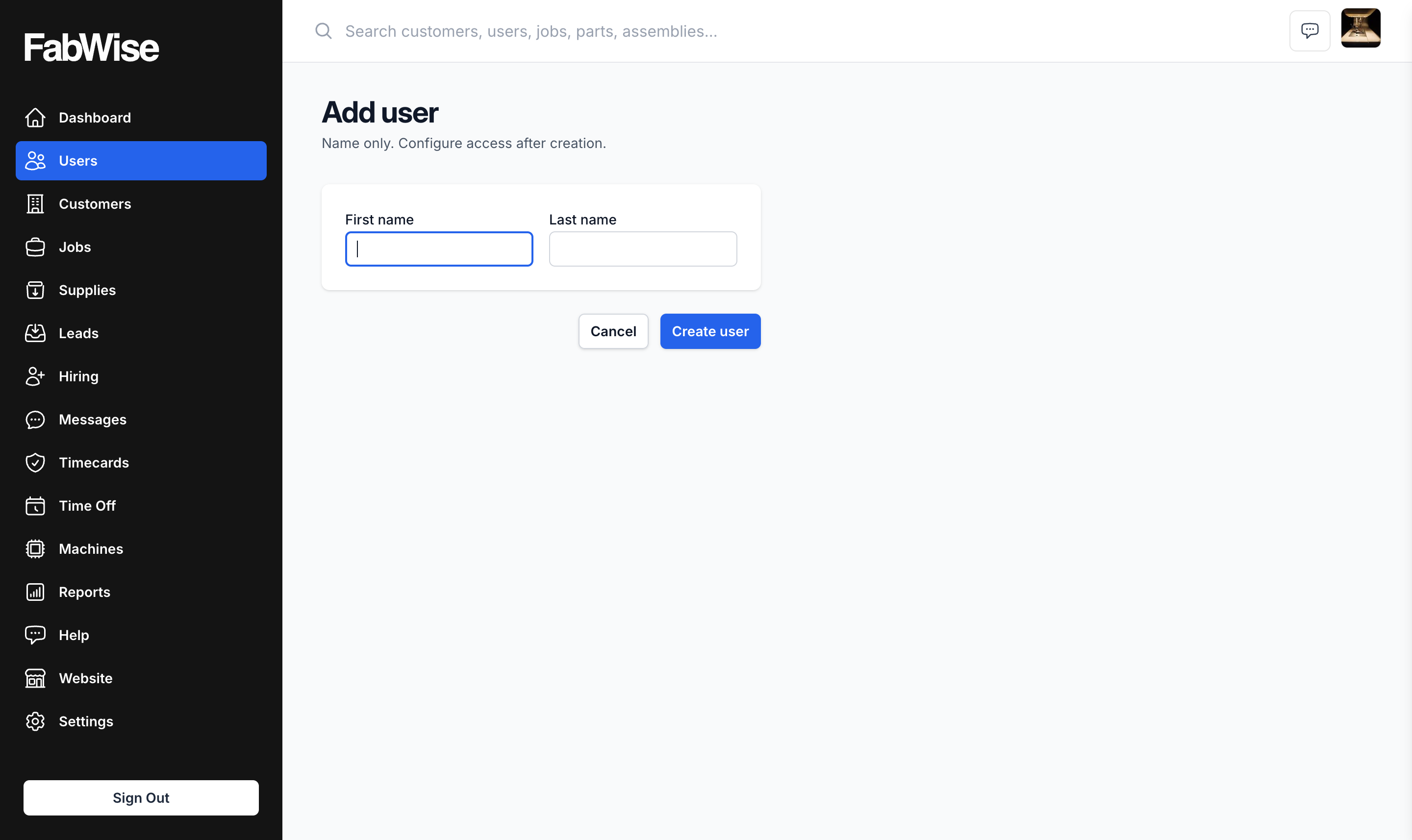
After creating the user, open their profile to set up:
- Details — email and phone. Email is required for supervisors, managers, and admins (it's how they sign in); workers don't need one.
- Role — User, Supervisor, Manager, or Admin
- Department — which team they're on
- Devices tab — turn on Kiosk access and set their 4-digit PIN so they can clock in
User detail
Click any user to see their profile, shift history, and performance data.
What to do
When someone joins the team
- Go to Admin > Users > Add User and enter their name
- On their profile, set their department (and role, if they're more than a shop-floor worker)
- On the Devices tab, turn on Kiosk access and set a PIN
- They can start their shift at the kiosk right away
When someone leaves the team
Deactivate first, delete later. This is a two-step process for safety:
- Go to Admin > Users > click the user > Deactivate
- FabWise shows a confirmation screen with the impact:
- Future scheduled shifts will be cancelled
- All sessions will be cleared (admin, workstation, kiosk)
- The user won't be able to log in or start shifts
- Confirm deactivation
The user is immediately hidden from active lists and can't start shifts. Their historical data (past shifts, tasks, hours) is preserved.
If it was a mistake: Click Show deactivated > find the user > Reactivate. Everything is restored.
Permanent deletion: After deactivation, you can delete the user. This sets a 30-day retention window — the user is soft-deleted and their data is preserved for support recovery. After 30 days, a nightly cleanup job permanently removes all their data.
Changing someone's department
Go to their user profile and update the department. This affects which schedule they're assigned to — future shifts will generate from the new department's schedule.
Setting up kiosk access
Every worker who clocks in at the kiosk needs Kiosk access turned on and a PIN. Both live on the Devices tab of their profile. PINs are 4 digits. The worker enters their PIN at the kiosk to identify themselves before starting a shift.
Common questions
Q: Can I have multiple admins?
A: Yes. Any number of users can have the admin role. All admins have the same permissions. (You can't remove the last admin — FabWise blocks changing the only admin's role.)
Q: What happens to a deactivated user's past shifts?
A: They're preserved. Past shifts, hours, and tasks remain in the system for reporting and audit purposes. The user just can't create new shifts.
Q: Can a deactivated user still log in?
A: No. Their kiosk PIN is rejected, their Workstation device stops working, and admin sessions are cleared immediately.
Q: Can I import users from a spreadsheet?
A: Not yet. Users are added individually through the admin panel.
Related
- [Understanding App Access](understanding-app-access-toggles.md)
- [Enroll a Worker for Workstation Access](enrolling-workers-for-workstation.md)
- [Shift Approval](shift-approval.md)
- [Settings Overview](settings-overview.md)
Last updated: 2026-08-23