
Enroll a Worker for Workstation Access
Give a worker their own private FabWise app on a tablet or phone. You scan a QR code once to bind the device to the worker — after that, no sign-in, no password, nothing to remember.
Why it matters
The Workstation is the worker's private FabWise app at workstation.fabwise.app. Unlike the shared kiosk on the shop floor, Workstation lives on the worker's own device. Each worker has their own:
- Schedule view
- Jobs and tasks
- Personal performance summary
- Messages from supervisors
Access is device-bound: you set up one device per worker by scanning a single-use QR code, and from then on the device opens straight into that worker's Workstation — no sign-in step. There's no password to forget, nothing to phish, and nothing for workers to share.
Setup takes about two minutes per worker.
Before you start
- The worker needs Kiosk access turned on (their profile → Devices tab) — Workstation is for time-tracked workers.
- Workstation is available on Professional plans.
How it works
- You generate a one-time setup QR code in the admin panel for a specific worker.
- You (or the worker) scan the QR code with the device's camera — or open the copied link on the device.
- The device opens a confirm screen showing the worker's name.
- Tap Set up this tablet. The device is now bound to that worker.
- From then on, the device opens
workstation.fabwise.appas that worker — no sign-in needed.
Step 1. Open the worker's profile
- Sign in to admin.fabwise.app as an account owner or admin.
- Go to Users in the left navigation.
- Click the worker you're enrolling, then open the Devices tab.
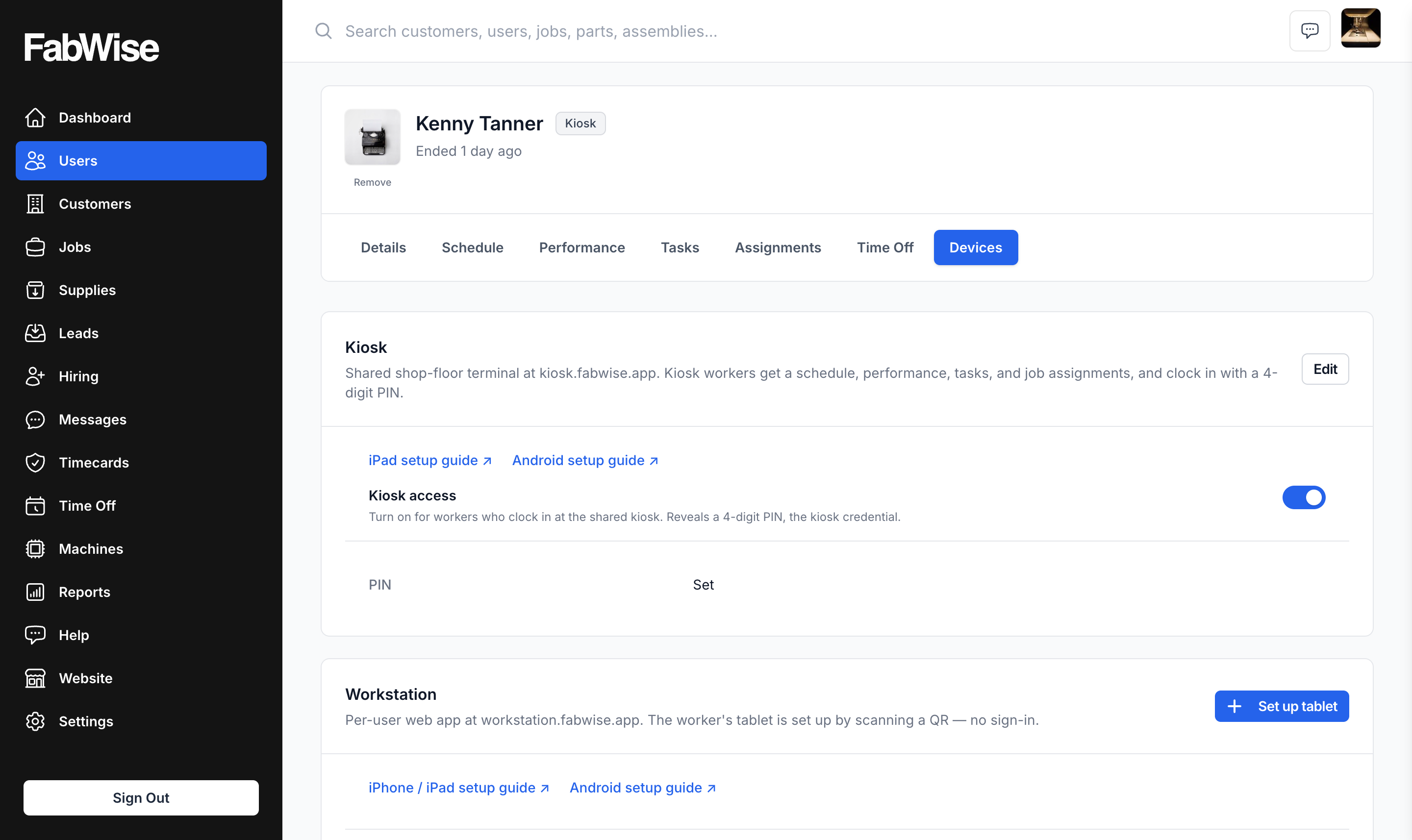
Step 2. Generate the setup QR code
- In the Workstation card, click Set up tablet.
- A QR code appears — single-use, valid for 24 hours — with the setup steps beside it.
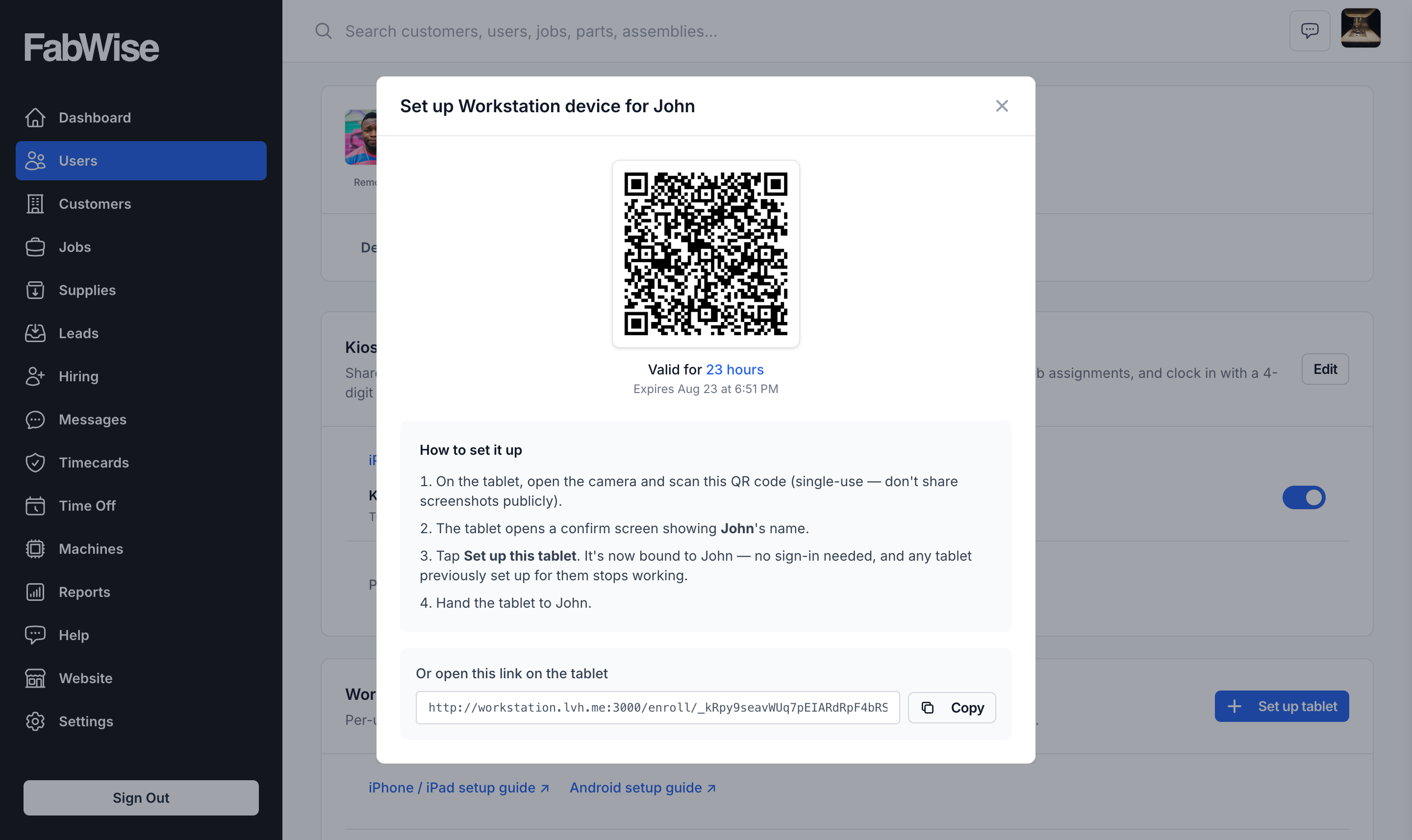
You now have two ways to get the setup onto the device:
- In person: scan the QR code with the device's camera.
- Remote: copy the link below the QR code and send it to the worker to open on their device (use a private channel — see the rules below).
Step 3. Confirm on the device
- Scanning the QR (or opening the link) shows a confirm screen with the worker's name.
- Tap Set up this tablet. The device is now bound to the worker — no sign-in needed.
- Hand the device to the worker.
You can confirm setup succeeded back on the worker's Devices tab — the device appears in the Workstation card's device list.
Important rules
One device per worker, by design. Each worker has exactly one active Workstation device at a time. Setting up a new device for a worker deactivates the old one. This is intentional — it keeps the worker's identity tied to a single physical device, so access can't quietly accumulate on phones and tablets the worker no longer uses.
When to re-do setup: the worker got a new device, lost their old one, or switched from a tablet to a phone. Generate a new QR code; the previous device stops working.
Setup QR codes expire in 24 hours and can only be used once. If one expires, generate a new one.
Don't share QR codes or setup links publicly. Anyone who opens the link can bind a device as that worker. Share via private channels only.
Removing a worker's access
When a worker leaves the company, or you need to revoke a lost device:
- Open the worker's profile in Admin → Users.
- Click the Devices tab.
- Find the device in the Workstation card and click Revoke.
The device immediately stops working for Workstation. If the worker is leaving the company, also change their status to Inactive under the main profile.
Where to find it
- Admin path: Admin → Users → (worker) → Devices → Set up tablet
- Who can set up devices: account owners and admins
- Setup QR validity: 24 hours, single-use
- Worker's URL after setup:
https://workstation.fabwise.app