
Set Up Your Careers Page
Post jobs on your public Customer Portal and collect applications without paying a job board. Hire faster by converting applicants directly into FabWise workers.
Why it matters
Hiring is the bottleneck for most growing shops. Job boards charge per post, indeed.com cuts your applicant pool into pieces, and email-only application flows leak candidates.
The Careers page on your Customer Portal solves all three. Post unlimited jobs at no extra cost. Track every application in one inbox. Move applicants through your hiring pipeline. When you hire someone, FabWise pre-fills their worker profile from their application — no re-typing.
The Careers page is independent of the quote-request portal. A shop can run a public Careers page without enabling quote requests, or vice versa.
What you need
- The Customer Portal feature enabled — Careers shares the same URL slug as your portal (
fabwise.app/shop/your-slug/careers) - A clear job description and requirements for each role you're posting
- An idea of pay range (optional but helps applicants self-qualify)
If your portal slug isn't set yet, do that first — see Set Up Your Customer Portal.
Step 1. Turn on the Careers page
- Sign in to admin.fabwise.app as an account owner.
- Click Website in the left nav.
- Click Edit.
- In the Publishing card, check Careers page.
- Click Save.
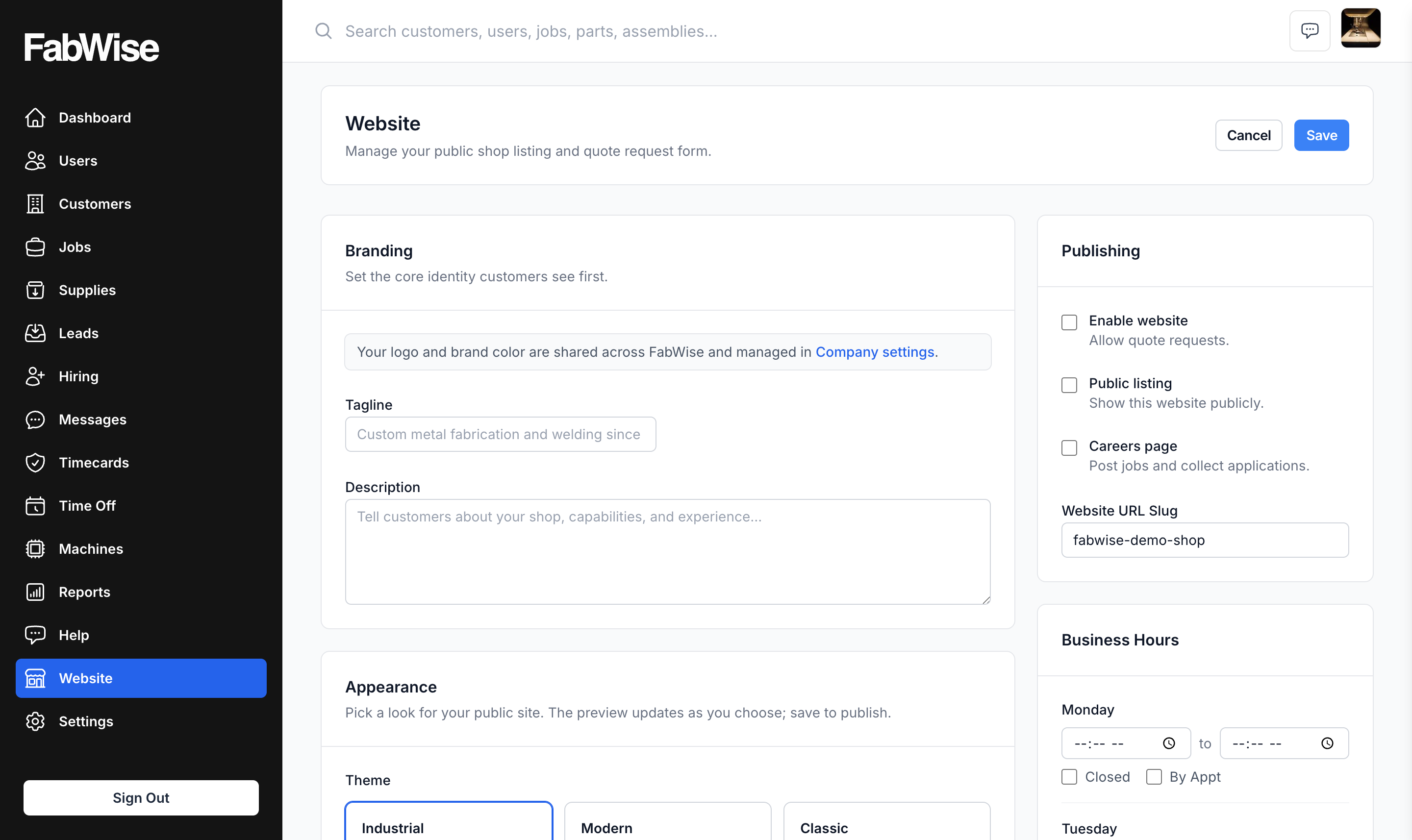
Your Careers page is now live at fabwise.app/shop/your-slug/careers. It's empty until you post a job — see Step 2.
You can turn Careers on independently of the rest of the website. To run Careers without a public quote-request listing, leave Enable website and Public listing unchecked, and check only Careers page.
Step 2. Post your first job
Click Hiring in the left nav.
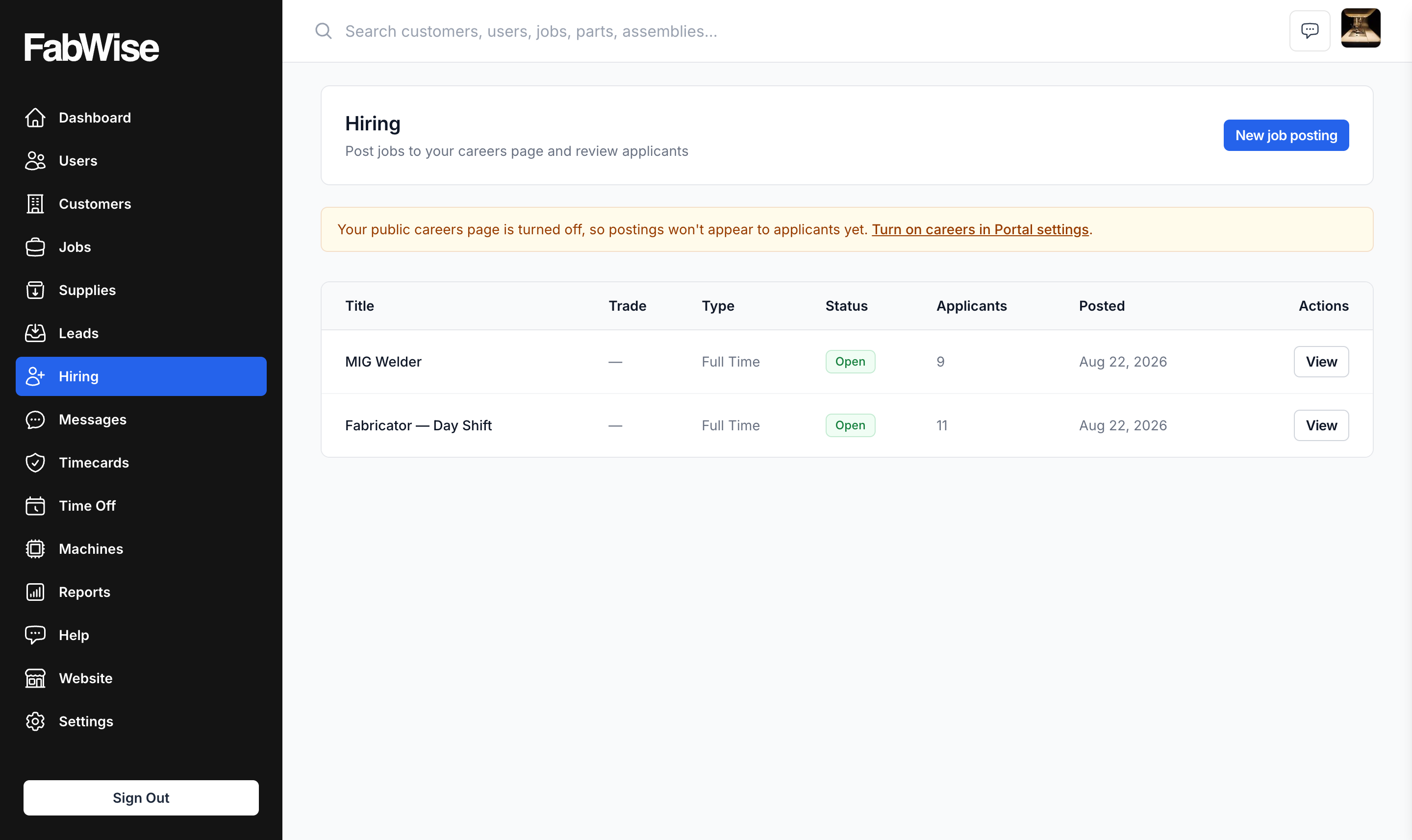
Click New job posting.
Fill in the fields — only the title and description are required:
Required:
- Job title — what shows up at the top of the listing. Examples: "Welder (TIG/MIG)", "CNC Machinist - Day Shift", "Apprentice Sheet Metal Mechanic"
- Description — what the job actually is, day-to-day. What they'll work on. What equipment they'll use. What the shop is like.
Optional but recommended:
- Requirements — what someone needs to be a fit. Years of experience, certifications, physical requirements, work eligibility.
- Employment type — Full Time, Part Time, and so on.
- Pay range — minimum and maximum, with pay period. Postings with a pay range get significantly more qualified applicants than postings without.
- Trade / role — the trade category (welding, machining, fabrication). Helps applicants filter.
- Location — city or shop address.

- Click Save as Draft to keep working on it, or Publish to make it live immediately.
A draft posting isn't visible on your public Careers page. A published posting appears on fabwise.app/shop/your-slug/careers and is open for applications.
The posting's URL slug is auto-generated from the title when you save and never changes — even if you edit the title later. Pick a title you're willing to live with.
Step 3. Share the posting
Once published, share the URL where job seekers look:
- The full posting URL is
fabwise.app/shop/your-slug/careers/job-slug - The Careers landing page (lists all open postings) is
fabwise.app/shop/your-slug/careers
Channels worth using:
- Your company's Facebook page
- LinkedIn (your personal profile, not the company page — personal posts get more reach)
- A "We're hiring" sign at your shop entrance with the URL
- Industry-specific Facebook groups for your trade
- Word of mouth — text the link to current employees and ask them to share
You don't need a paid Indeed or ZipRecruiter listing to get applicants. The Careers page is the canonical link; everything else routes there.
Step 4. Review incoming applications
When someone applies, FabWise creates an Applicant record. To see them:
- Go to Hiring in the left nav.
- Click the job posting.
- Scroll to the Applicants section.
Each applicant shows: name, email, phone, years of experience, certifications, an optional message, and an optional resume (PDF or Word).
The applicant also gets an automatic confirmation email saying we received their application.
Step 5. Move applicants through the pipeline
Each applicant has a status. The flow is:
- New — just applied, hasn't been reviewed yet
- Reviewing — you've read it and are considering
- Interview — you've reached out and scheduled a conversation
- Offer — you've extended an offer
- Hired — they accepted, you're onboarding them
- Rejected — not a fit
To update an applicant's status, click their name to open the detail page and pick from the status dropdown.
Status is for your own tracking — applicants don't see it, and no automatic emails go out when you change status. Reach out to applicants directly when you want to interview, offer, or pass.
Step 6. Hire an applicant
When an applicant accepts your offer, mark them Hired. FabWise then redirects you to the new-user form pre-filled with the applicant's name. Click Create user, then finish onboarding on the new worker's profile:
- Kiosk access and a 4-digit PIN (their Devices tab)
- Department and Supervisor
- Email address (copy it over from the application)
- Hourly rate (for job costing)
The hire is now a FabWise worker who can clock in on the kiosk.
Closing a posting
When the role is filled — or you stop hiring for it:
- Open the posting.
- Click Close (or change status to Closed).
A closed posting is removed from the public Careers page. The applicant history stays attached to the posting in your admin.
You can re-open a closed posting if you need to hire for the same role again, or duplicate it as a starting point for a similar role.
Where to find it
- Public Careers URL:
fabwise.app/shop/your-slug/careers - Admin path for postings: Admin → Hiring
- Admin path for applicants: Admin → Hiring → (posting) → Applicants
- Who can manage postings + applicants: account owners and admins
- Resume file types accepted: PDF, Word (.doc, .docx) — 10 MB max
Tips that actually move the needle
- Post the pay range. The single biggest predictor of applicant volume and quality. Hiding pay filters out the candidates you want and attracts the ones you don't.
- Be specific in the description. "Looking for a welder" gets nothing. "Looking for a TIG welder for thin-wall stainless food-grade equipment, day shift, no overtime" gets the right person.
- Mention what's good about working at your shop. Pay isn't the only thing. Steady work, no weekends, modern equipment, good crew, training opportunities — pick the two or three things that are actually true about your shop and say them.
- Reply to every applicant within 48 hours, even if it's no. Your reputation as a place that responds matters. Word travels.
- Close postings when you've hired. Stale "still open" postings damage trust. Close them, repost if you need to.
Troubleshooting
My Careers page shows "Not Found"
Two things to check. First, that Careers page is checked in Admin → Website → Edit → Publishing. Second, that your website URL slug is set — without a slug, there's no URL.
My posting is published but doesn't appear on the public page
The public Careers page only shows postings with status Open (published). Check that you didn't accidentally save as Draft or that the posting hasn't been closed. Open the posting and confirm its status.
An applicant says they applied but I don't see them
Check the spam folder of the email on file for your account. Also confirm the applicant submitted on the right posting URL — if they applied to a closed posting, the application still goes through but only shows on that specific posting's applicant list.
I want to delete an applicant
Applicants aren't deletable from the UI. Mark as Rejected — they stop appearing in your active queue. If you need permanent deletion for legal reasons (privacy request), contact support.
I'm getting spam applications
Applications are protected by Cloudflare Turnstile. Some still get through — mark as Rejected. If volume becomes a problem, contact support.
I want to repost a job I closed three months ago
Open the closed posting and click Reopen (or change status to Open). Old applicants stay attached to the original posting; new applicants come in fresh against the now-reopened posting.
Related
- [Set Up Your Customer Portal](customer-portal-setup.md)
- [Managing Users](managing-users.md)
- [Managing Leads](managing-leads.md)